

Simulation Enabled Experiential Learning (SEEL)
Empowering Students to Become Industry-Ready Innovators
Visvesvaraya Technological University (VTU) is one of India's largest technological universities, established in 1998 with the vision of delivering high-quality engineering and technical education through practical, industry-focused learning. The university brings numerous affiliated engineering colleges under a unified academic framework, fostering excellence in education, research, innovation, and skill development.
VTU E-Learning (VTU-CDOE) powers the Simulation Enabled Experiential Learning (SEEL) platform to help students strengthen their knowledge, technical skills, and industry readiness. SEEL is an advanced learning ecosystem that bridges the gap between academic concepts and real-world industry expectations. Through this platform, students can participate in courses, webinars, workshops, virtual labs, mock interviews, assessments, internships, and certification programs aligned with their department and areas of interest.

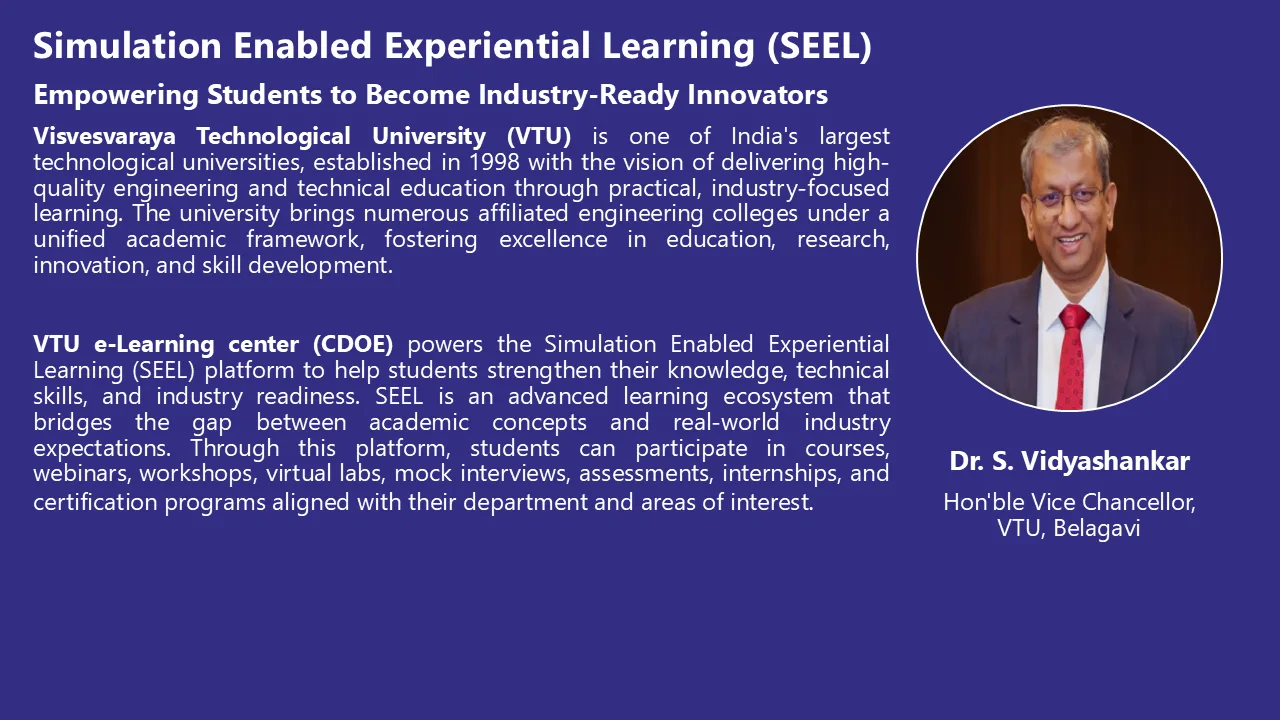
Dr. S. Vidyashankar
Hon'ble Vice Chancellor, VTU, Belagavi
Frequently Asked Questions
Everything you need to know about SEEL.
GENERAL FAQ
SEEL (Simulation Enabled Experiential Learning) is an advanced digital learning ecosystem established by Visvesvaraya Technological University (VTU), Belagavi, in collaboration with VTU E-Learning Centre (CDOE). The platform is designed to bridge the gap between academic instruction and real-world industry expectations.
SEEL provides students across 200+ VTU-affiliated engineering colleges with access to:
- Courses, webinars, and workshops
- Virtual labs and simulation-based experiments
- Online skill tests and GATE practice examinations
- Internship and live project opportunities
- AI-powered mock interviews and assessments
- Skill certifications aligned with industry requirements
The portal is accessible to the following user categories:
- Student: Any student enrolled in a VTU-affiliated institution. Access to courses, exams, internships, mock interviews, and certificates.
- Faculty: Teaching staff at VTU-affiliated colleges (requires admin approval). Access to content creation, assessments, and student performance reports.
Important: Faculty accounts require approval by the Administrator before full examiner features are activated. Until approval is granted, Faculty users are treated as regular Student users.
Registration:
- Navigate to seellab.com/vtu_all/public/register.
- Enter your First Name, Last Name, and a valid Email Address.
- Create and confirm a secure Password.
- Select your Role: Student or Faculty.
- Choose your affiliated College from the dropdown list.
- Select your Department.
- Click Sign Up to complete registration.
Login:
- Visit seellab.com/vtu_all/public/login.
- Enter your registered Email Address and Password.
- Click Sign In.
- You will be redirected to your role-specific dashboard.
- On the login page, click the Forgot Password? link below the Sign In button.
- Enter your registered email address and submit the request.
- Check your email inbox for a password reset link from VTU SEEL.
- Check Spam/Junk if not received within 5 minutes.
- Click the link in the email and set a new password.
- Log in using your new credentials.
Warning: Password reset links expire after a limited time. If the link has expired, request a new one from the Forgot Password page.
Upon successful login, users are redirected to their role-specific dashboard:
- Students: Enrolled courses, upcoming skill tests, internship applications, announcements, and quick links to sub-portals.
- Faculty: Content management tools, assessment creation options, and student performance summaries (after admin approval).
- Admin: Full system overview including user counts, activity metrics, approvals, reports, and configuration options.
- SEEL Main Portal: Central login, announcements, webinars, projects listing.
- ExamInfinity: Online skill tests, GATE practice exams, assessments.
- DasohaInfinity: Courses, webinars, workshops, and certificate programmes.
- CourseInfinity: E-learning courses and learning materials.
- MockInfinity: AI and mentor-driven mock interviews.
- InternInfinity: Internship and live simulation project applications.
STUDENT / USER FAQ
- Log in to the SEEL portal
- Navigate to DasohaInfinity from the top navigation bar or click Show More under "Webinars & Workshops" on the homepage.
- Browse available courses, workshops, and webinars.
- Click on the desired programme to view its details, schedule, and eligibility criteria.
- Click Enrol or Register and confirm your enrolment.
- A confirmation notification will be sent to your registered email address.
Tip: Some programmes may have limited seats or registration deadlines. Enrol early to avoid missing out.
- Log in and proceed to CourseInfinity from the top navigation.
- Your enrolled courses will appear on your dashboard.
- Click on a course to access video lectures and reading materials.
- For virtual labs, click the Virtual Lab button and follow the on-screen simulation instructions.
- Progress is automatically tracked. Completion percentage is visible on your dashboard.
- From the SEEL homepage or dashboard, click Skill Tests or navigate to ExamInfinity.
- Browse the list of active exams (DHIO Research, GATE 2024, GATE 2025, and more).
- Click Start Exam on the test you wish to attempt.
- Read the instructions carefully, then click Begin to start the timer.
- Answer all questions and click Submit before the timer expires.
- Your result and score will be displayed immediately after submission.
Important: Do not refresh or close the browser window during an active exam. Doing so may result in automatic submission or loss of progress.
- Take Skill Test: Complete the assigned skill test on ExamInfinity to evaluate your fundamentals and demonstrate eligibility.
- Mock Interview: Clear the AI/mentor-driven mock interview on MockInfinity to validate your job-readiness.
- Apply for Project: Once both criteria are met, visit InternInfinity, browse open simulation projects, and click Apply Now.
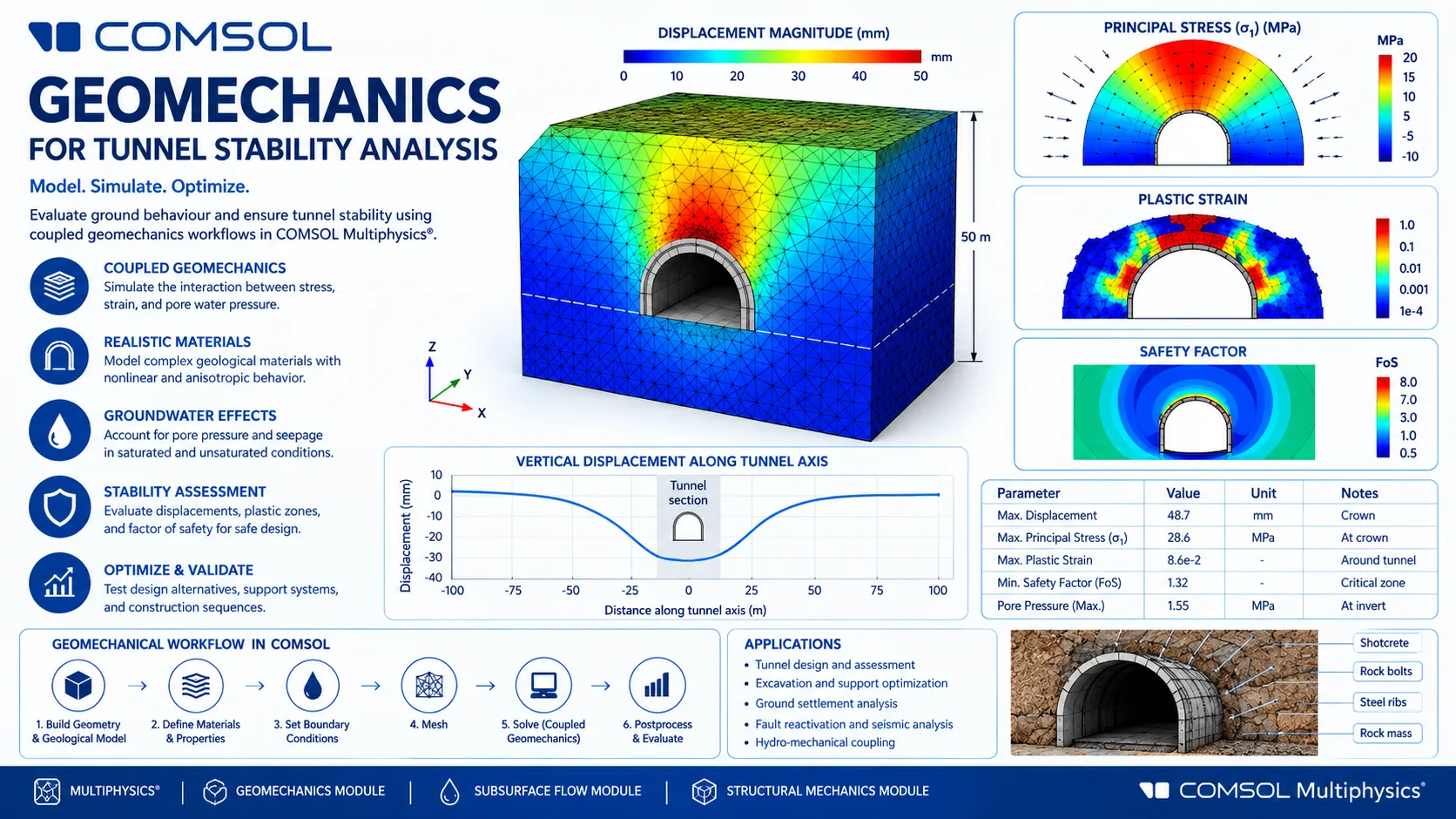
Tip: Projects include real COMSOL Multiphysics simulations, engineering design challenges, and domain-specific research tasks. Choose a project aligned with your branch of engineering.
- Navigate to MockInfinity from the top navigation or SEEL dashboard.
- Select an upcoming or available mock interview session (AI-driven or mentor-driven).
- Ensure your webcam and microphone are functioning correctly before beginning.
- Complete the interview session. AI sessions provide real-time feedback at the end.
- For mentor-driven sessions, feedback will be shared within 24–48 hours.
- Log in to the portal.
- Click on your profile avatar in the top-right corner of the dashboard.
- Select Edit Profile.
- Update the desired fields: name, college, department, contact details, or profile photo.
- Click Save Changes to confirm the update.
Note: The registered email address cannot be changed after account creation. Contact your institution's SEEL coordinator or the support team to request an email change.
TROUBLESHOOTING FAQ
- Correct portal URL — Ensure you are visiting seellab.com/vtu_all/public/login. Sub-portals have separate login pages.
- Email address — Use the exact registered email (case-sensitive).
- Password — Ensure password is entered correctly (case-sensitive).
- Faculty account not approved — Faculty users must wait for Admin approval.
- Account deactivated — Contact your SEEL coordinator.
- Use Forgot Password — Reset your password if needed.
- Check internet connectivity — Ensure stable internet connection.
- Try a different browser — Use Chrome, Firefox, Edge, etc.
- Check announcements — Maintenance windows may be active.
- Insufficient role privileges — You may be trying to access a restricted page.
- Faculty not approved — Admin approval pending.
- Session timeout — Login session expired.
- Wrong sub-portal — Ensure correct portal access.
- Do not panic — Reopen browser and return to ExamInfinity.
- Re-login — Resume exam if still within active window.
- Check remaining attempts — Some exams allow multiple attempts.
- Contact Exam Coordinator — Report issue with details and screenshot if available.
Prevention: Use stable internet, preferably wired connection, and close unnecessary tabs before starting exams.
- File size too large — Max 5MB (images) / 20MB (documents).
- Unsupported format — Allowed: PDF, DOC, DOCX, PPT, PPTX, JPG, JPEG, PNG.
- Slow internet — Use stable, high-speed connection.
- Browser issue — Try different browser or clear cache.
- Session expired — Re-login and retry upload.